

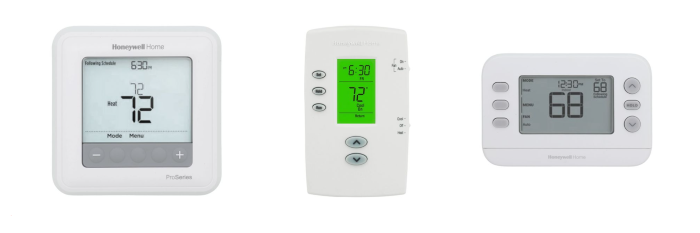
A Honeywell Home thermostat that won’t respond, holds the wrong temperature, or refuses to connect to Wi-Fi isn’t necessarily broken. Nine times out of ten, a reset fixes it. The challenge is that Honeywell Home has been making thermostats for decades, and the reset procedure is different for every generation. Press the wrong button on the wrong model and nothing happens except frustration.
This guide covers the correct reset procedure for every major Honeywell Home thermostat family currently in service: T10 Pro smart thermostat, T6 Pro, FocusPro, VisionPRO, and non-programmable units. Each section identifies the model numbers, explains the type of reset available, and walks through the steps. Before starting, know the difference between reset types.
Reset Types: What Each One Does
| Reset Type | What It Clears | What It Keeps |
| Factory Reset | All settings: schedule, Wi-Fi credentials, installer config, temperature preferences | Nothing. Thermostat returns to out-of-box state. |
| Schedule Reset | Custom temperature schedule only | Wi-Fi connection, installer settings, all other preferences |
| Wi-Fi Reset | Stored Wi-Fi credentials and network pairing | Schedule, temperature settings, installer config |
| HomeKit Reset (T9/T10) | Apple HomeKit pairing | Wi-Fi, schedule, all other settings |
| Soft Reset (battery pull) | Active memory, screen freeze, minor software glitch | Programmed schedule and preferences (on most models) |
Record installer setup (ISU) parameters before performing a factory reset on any model. On most Honeywell Home thermostats, the ISU contains system type, staging configuration, and equipment-specific settings that will need to be re-entered after.
Finding the Model Number
The correct reset path depends entirely on the model. On most Honeywell Home thermostats, the model number is printed on a sticker on the back of the faceplate. Pull the faceplate straight off the wall base to find it. On smart models like the T9 and T10 Pro, the model number also appears under Menu > Thermostat Information within the device interface, or in the Honeywell Home app under Device Info.
A quick identification guide:
-
- Touchscreen display with Wi-Fi: T9, T10 Pro, T6 Pro Wi-Fi, or VisionPRO 8000 Wi-Fi
- Physical push-buttons with small LCD: T6 Pro programmable (non-Wi-Fi) or FocusPro series
- No display or simple dial: non-programmable and manual models
- Round form factor: T87N series
T10 Pro and T9 Smart Thermostats
The T10 Pro series is the current Honeywell Home smart thermostat available at SupplyHouse. Browse the Honeywell Home T Pro Series at SupplyHouse for current in-stock models. The T9 (model numbers RCHT9510WF and RCHT9610WF) is no longer carried at SupplyHouse but remains widely installed in homes; the reset procedure below covers both units.
The T10 Pro and T9 use a touchscreen menu interface. All reset types are accessible through the same path. Per Honeywell Home’s official support documentation, the procedures are identical for both models.
Factory Reset: T10 Pro and T9
-
- Press the Menu icon (three horizontal lines at the top of the touchscreen).
- Scroll down and select Advanced Setup.
- Select Reset.
- Select Factory Reset.
- Confirm when prompted. The thermostat restarts and displays the initial setup screen.
After a factory reset, the T9 and T10 Pro automatically unlink from the Honeywell Home app account. Open the app, remove the old device entry, then re-add the thermostat using the + icon or Add New Device.
Note on T10 Pro: the IAQ calibration period restarts after a factory reset. Allow approximately 24 hours for accurate VOC and CO2 readings to stabilize.
Schedule Reset: T10 Pro and T9
-
- Press the Menu icon.
- Select Advanced Setup.
- Select Reset.
- Select Schedule Reset. Default schedule restores as: Wake 6:00 a.m. (Cool 78 / Heat 70), Away 8:00 a.m. (Cool 85 / Heat 62), Home 6:00 p.m. (Cool 78 / Heat 70), Sleep 10:00 p.m. (Cool 82 / Heat 62).
Wi-Fi Reset: T10 Pro and T9
-
- Press the Menu icon.
- Scroll down to Wi-Fi and select it.
- Select Change Network.
- Select the new Wi-Fi network and enter the password.
A remote schedule reset is possible for T10 Pro and T9 units connected to the Honeywell Home app. Open the app, select the thermostat, go to Settings, and look for Schedule Reset. Full factory resets require physical access to the device.
T6 Pro Programmable Thermostat (Non-Wi-Fi)
Model numbers: TH6210U2001, TH6220U2000, TH6320U2008. The non-Wi-Fi T6 Pro uses a push-button interface with a small LCD. No dedicated reset button exists. Browse Honeywell Home PRO Thermostats at SupplyHouse.
Per Honeywell Home support documentation, the T6 Pro reset procedure accesses the installer setup (ISU) menu through a button hold:
Factory Reset: T6 Pro Non-Wi-Fi
-
- Set the system to Off using the Mode button.
- Press and hold the center blank button (unlabeled) for approximately 5 seconds. The screen will flash or display ISU to confirm entry into the installer menu.
- Use the arrow buttons to navigate to the Reset or Factory Reset option (some firmware versions display this as ISU 0000).
- Press Select. A confirmation prompt appears.
- Press Yes or Select again to confirm. The screen goes blank, then restarts. A successful reset displays the initial language and time setup screen.
The T6 Pro non-Wi-Fi model has no Wi-Fi reset option. Resetting only clears programmed schedules and temperature preferences. Installer parameters will need to be re-entered.
T6 Pro Smart Wi-Fi Thermostat
Model number: TH6220WF2006. A touchscreen Wi-Fi model with four available reset types. Available at SupplyHouse: T6 Pro Smart Wi-Fi Thermostat.
Per Honeywell Home’s feature documentation for the T5/T5+/T6 Pro Wi-Fi series, four reset options are available: Factory, Schedule, Wi-Fi, and HomeKit.
Factory Reset: T6 Pro Wi-Fi
-
- Press the Menu icon on the touchscreen.
- Scroll to Advanced Setup and select it.
- Select Reset.
- Select Factory Reset. Confirm. The thermostat returns to factory defaults and prompts for initial setup.
Wi-Fi Reset: T6 Pro Wi-Fi
-
- Press the Menu icon.
- Scroll to Wi-Fi and select it.
- Select Change Network.
- Select the new network and enter the password.
Alternatively, if the thermostat is registered in the Honeywell Home app, log in, select the thermostat, tap the settings icon, and use the Reset Wi-Fi option at the bottom of the screen.
FocusPro Thermostats (N100, P200, S200)
The Honeywell Home FocusPro lineup available at SupplyHouse covers the N100, P200, and S200 series. Browse Honeywell Home FocusPRO Thermostats for the full range of in-stock models.
Factory Reset: FocusPro N100, P200, and S200
-
- Press and hold the Menu button for 5 seconds.
- Navigate to Reset using the arrow buttons.
- Select Factory Reset and confirm. The thermostat returns to out-of-box defaults.
The FocusPro S200 is Wi-Fi enabled and supports a Wi-Fi reset path identical to the T6 Pro Wi-Fi: Menu > Wi-Fi > Change Network.
VisionPRO Thermostats (8000 Series)
Model numbers: TH8320WF, TH8321WF, TH8580WF. Large touchscreen units. Browse Honeywell Home VisionPRO Thermostats at SupplyHouse.
Factory Reset: VisionPRO 8000
-
- Turn the thermostat on and press System.
- Press and hold the blank center key until the display changes.
- Navigate using the display buttons. Use function 0710 with a right-side value of 1 to initiate a factory restore (some firmware displays this as Reset to Defaults).
- Confirm the selection. The thermostat reboots.
For Wi-Fi models (TH8321WF, TH8580WF): access the Wi-Fi reset via Menu > Wi-Fi > Change Network after powering on.
Non-Programmable and Manual Thermostats
Honeywell Home non-programmable thermostats, including the T87N1000 Round (SKU: T87N1000), PRO 1000, and similar models, have no menu-based reset function. Browse the full Honeywell Home Non-Programmable Thermostat lineup at SupplyHouse.
A soft reset for these models:
-
- Set the thermostat to Off.
- Remove it from the wall base.
- Pull the batteries (if battery-powered).
- Wait 60 to 90 seconds.
- Reinsert batteries with correct polarity and remount.
For hardwired non-programmable models without batteries, turn off the dedicated HVAC breaker, wait 60 seconds, and restore power. A blank screen after this procedure indicates a wiring or transformer problem, not a reset failure.
After the Reset: What to Reconfigure
A factory reset returns the thermostat to an unconfigured state. Expect to re-enter the following:
-
- System type (conventional, heat pump, dual fuel)
- Heating and cooling stages
- Temperature differential and cycle rate
- Fan mode preferences
- Custom schedule (or select the default schedule)
- Wi-Fi network credentials (for Wi-Fi models)
- Honeywell Home app re-pairing (for smart models)
- Equipment interface parameters for multi-zone or RedLINK systems
The 5-minute compressor protection delay is normal after any restart on heat pump systems. The display shows a Wait message and the compressor will not energize until the delay clears. Nothing is wrong.
Reset Method by Model: Quick Reference
| Model Family | Factory Reset | Schedule Reset | Wi-Fi Reset | Battery Pull |
| T10 Pro / T9 | Menu > Advanced Setup > Reset > Factory Reset | Yes, via same path | Yes, via Menu > Wi-Fi | Not applicable |
| T6 Pro Wi-Fi | Menu > Advanced Setup > Reset > Factory Reset | Yes, via same path | Yes, via Menu > Wi-Fi | Not applicable |
| T6 Pro (non-Wi-Fi) | Hold center button 5 sec > ISU menu > Reset | Yes, via ISU menu | N/A (no Wi-Fi) | Clears screen freeze |
| FocusPro N100/P200/S200 | Hold Menu 5 sec > Factory Reset | Via menu | S200 only | Soft reset only |
| VisionPRO 8000 | System + hold center key > function 0710 / Reset to Defaults | Via menu | Wi-Fi models only | Not applicable |
| Non-Programmable | Battery removal / breaker cycle | N/A | N/A | Primary method |
FAQs
Does a factory reset affect the HVAC equipment?
No. A factory reset clears the thermostat’s settings and memory only. The furnace, air conditioner, heat pump, and air handler are unaffected. Equipment will continue to operate normally once a new call for heating or cooling is made after reconfiguring the thermostat.
The thermostat shows ‘Wait’ after restarting. Is that a problem?
No. The Wait message is a built-in compressor protection delay, standard on Honeywell Home thermostats. After a restart or mode switch, the system holds for approximately 5 minutes before energizing the compressor. Bypassing this delay can cause short cycling and compressor damage.
How is the PIN for a locked T5/T6 Pro Wi-Fi thermostat calculated?
Remove the faceplate to access the label on the back. Locate the 4-digit Date Code printed on the label. The PIN is that Date Code plus 1234. For example, a Date Code of 1644 gives a PIN of 2878.
A factory reset was completed but the thermostat won’t connect to Wi-Fi. What’s the cause?
The most common cause is a missing or improperly connected C-wire. Honeywell Home Wi-Fi thermostats require continuous 24 VAC via the C terminal to maintain Wi-Fi. A dropped connection after reset is often the first sign that the C-wire was missing or unreliable. A C-wire adapter can solve this without pulling new cable.
Is there a way to reset just the schedule without clearing installer settings?
Yes, for T10 Pro, T9, T6 Pro Wi-Fi, and FocusPro models. Navigate to the same reset menu path and select Schedule Reset rather than Factory Reset. Installer parameters, Wi-Fi credentials, and temperature preferences remain intact.
The screen is blank after a battery pull. What does that indicate?
On battery-powered non-programmable models, a blank screen after battery reinstallation usually means low or dead batteries, incorrect polarity, or corroded contacts. Try fresh alkaline batteries. For hardwired models, a blank screen after power cycling points to a C-wire voltage problem or a blown low-voltage fuse on the air handler control board.
After a reset, the thermostat calls for heat but nothing happens at the equipment. Where should troubleshooting start?
Start with the installer setup configuration. After a factory reset, system type must be re-entered. If the thermostat is set to heat pump mode on a conventional system (or vice versa), the call signals won’t match the equipment wiring. Verify the ISU settings match the actual system before looking at wiring.
Is there a way to back up thermostat settings before a factory reset?
For T10 Pro and T9 units, the Honeywell Home app stores schedule data in the cloud. After re-pairing post-reset, schedules may restore automatically. For all other models, write down the ISU configuration, system type, and staging parameters manually before resetting. There’s no automatic backup.
The thermostat is stuck in a permanent hold and won’t follow the schedule. Does it need a full factory reset?
Not necessarily. A permanent hold can be released without a reset by pressing Cancel or Run Schedule on the thermostat display. A full reset is only warranted if the button press doesn’t release the hold, or if the schedule itself is corrupted.
When should the thermostat be replaced rather than reset?
If the thermostat fails to respond after completing the correct reset procedure, if the screen is physically damaged, or if repeated resets don’t resolve recurring issues such as erratic staging behavior or consistent temperature offset, replacement is the more efficient call. At that point, continued troubleshooting costs more in labor than a new unit.
Before You Leave the Job
A Honeywell Home thermostat that’s acting up doesn’t always mean a bad thermostat. More often, it means settings have drifted, a Wi-Fi handshake failed, or someone’s schedule programming went sideways. Knowing the right reset path for each model family keeps those service calls short. Follow the model-specific steps above, record ISU parameters before resetting, and reconfigure systematically after. The thermostat will be back on task in under ten minutes.
Browse the full line of Honeywell Home Thermostats at SupplyHouse, including smart thermostats, Wi-Fi thermostats, and non-programmable models. Everything ships fast, with free ground shipping on orders over $99.